Featured Links
The featured links section allows you to add a graphical list of promotional links to your page. The featured links section allows you to add 3 image link boxes with text and buttons to a page.
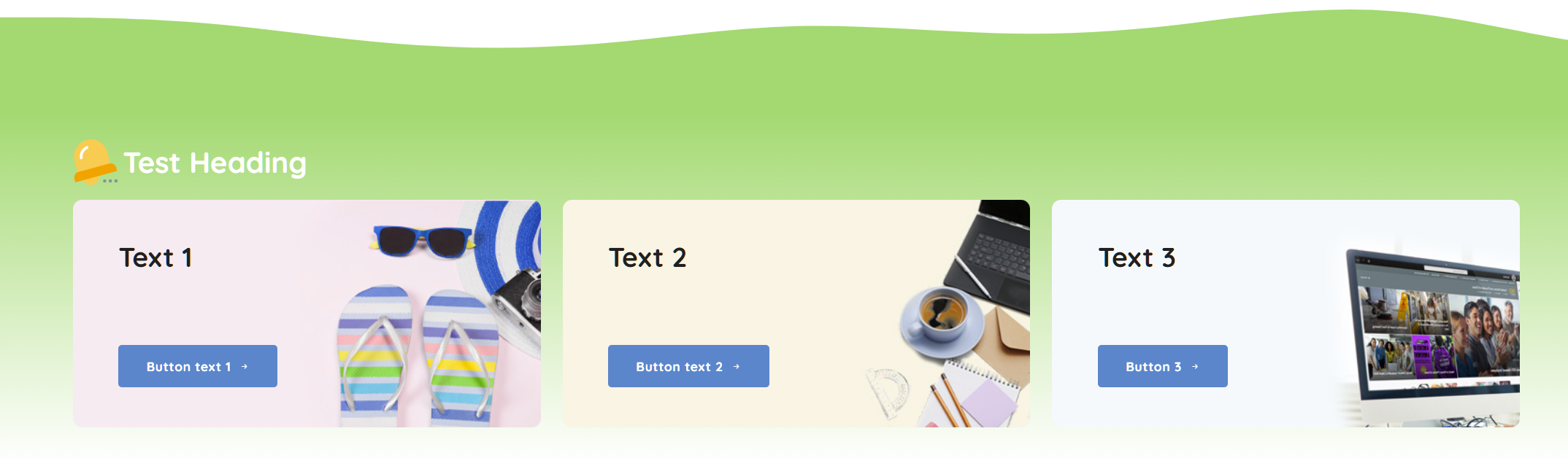
You can add widgets to any page or news item where widgets are supported. You can also change the order of widgets by clicking and dragging the widget title to the desired location.
How to add a widget to a page
To get started, simply select the Add page widget button and select the Content box with promo image widget.

Once selected, find the widget you wish to add to a page and select the widget, after selecting the widget options window will open, allowing you to configure the widget.
📄️ Featured Links
Featured links is designed to always have a minimum of 3 links. If you only have 1 or 2 links, the widget will still work, however the layout will be different.
📄️ Settings
The settings section allows you to configure how the widget will work and display for the end users.